How an Unregistered User Can Join the Portal
VIDIZMO allows new users to join a portal through a simple registration process. Users with a valid email address can request to join a portal, which will either be approved automatically or require moderator approval based on the portal's security settings.
Prerequisites
- The portal must have join requests enabled in its security settings
- You need a valid email address for verification
- The portal URL must be accessible
Navigate to the join page
Use these steps to access the portal registration form.
- Open your web browser and navigate to the portal URL.
- On the login page, select Join [Portal Name] to open the registration form.

Complete the registration form
Fill in your details to create your portal account.
- Enter your First Name.
- Enter your Last Name.
- Enter a valid Email Address.
- Create a Password that meets the portal's password requirements.
- Re-enter your password in the Confirm Password field.
- Complete any additional custom fields if required by the portal.
- Review the Privacy Policy and Terms of Use if displayed.
- Select Join Portal to submit your registration.

Note: Portal administrators can customize the registration form with additional fields. The form may vary between portals.
Note: Privacy Policy and Terms of Use checkboxes appear only if GDPR compliance is enabled on the portal.
Verify your email address
Complete the email verification to activate your account.
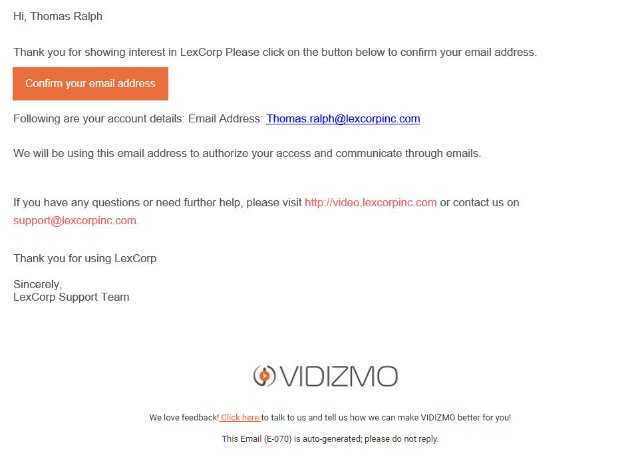
- Check your email inbox for a verification message from VIDIZMO.
- Select Confirm your email address in the email to verify your account.
- You will be redirected to the portal in a logged-in state.
Join request approval
Depending on the portal's security settings, your join request may be handled in one of these ways:
- Auto-approved: Your account is activated immediately after email verification.
- Manual approval: A portal administrator must approve your request before you can access the portal. You will receive an email notification when approved.
- Trusted domains: Requests from specified email domains are auto-approved; others require manual approval.
Note: If your request is pending approval, you will see a message indicating the request status when attempting to log in.
Related articles
- How to Change Approval Settings for Join Request
- How to Add Custom Field to the Join Portal Form
- How to Setup SSO using Google
- How to Setup SSO using Microsoft Live ID